Block Properties
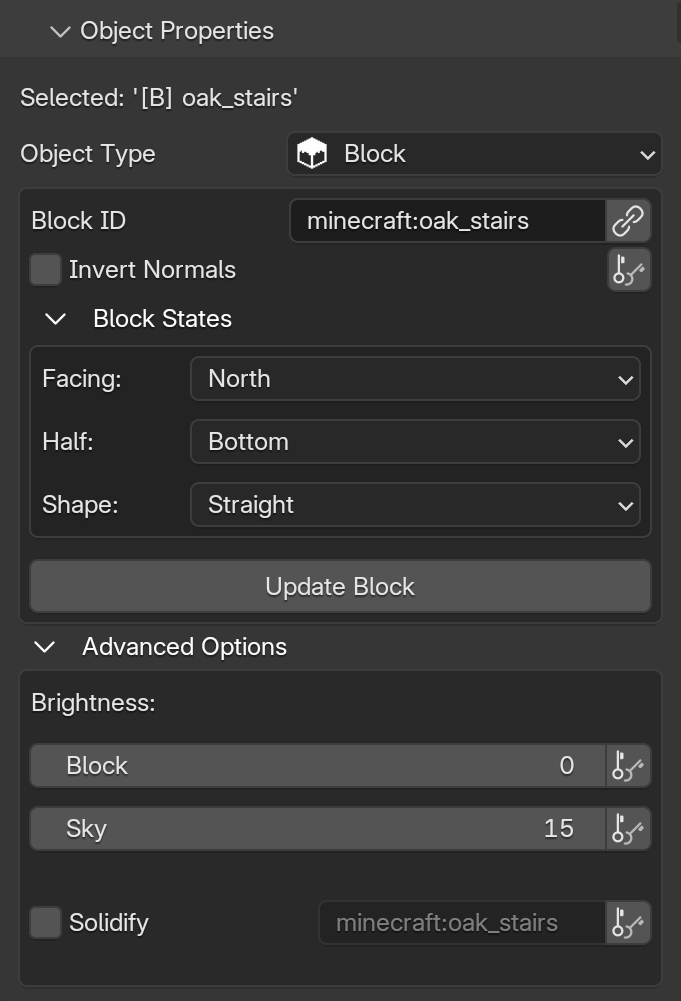
When your object's Type is set to Block, the properties panel dynamically updates to show settings specific to Minecraft blocks. This area allows you to modify the block's appearance, adjust its states, and configure other advanced options.
Looking for the core settings?
For information on the Active Object Name or how to change the Object Type, please check the Object Properties page.
Block ID

This field is where you change the Minecraft ID for the block. Changing the ID here allows you to swap the block's appearance without having to recreate the object or lose any existing animations.
- Apply ID to all: Right next to the Block ID field, there is a chain icon. Clicking this icon turns it blue and enables a sync mode. While active, any changes you make to the Block ID, Invert Normals, or Blockstates will be applied to all selected blocks when updating.
Invert Normals

This checkbox flips the block's faces. This effect is visible both in Blender and Minecraft, and you can also animate this property.
- Apply & Keyframe Selected: On the right side of this property, and many others below, you will see an icon of two keys. Clicking this button takes the current value of only this specific property and applies it to all selected blocks, creating an animation keyframe at your current timeline position.
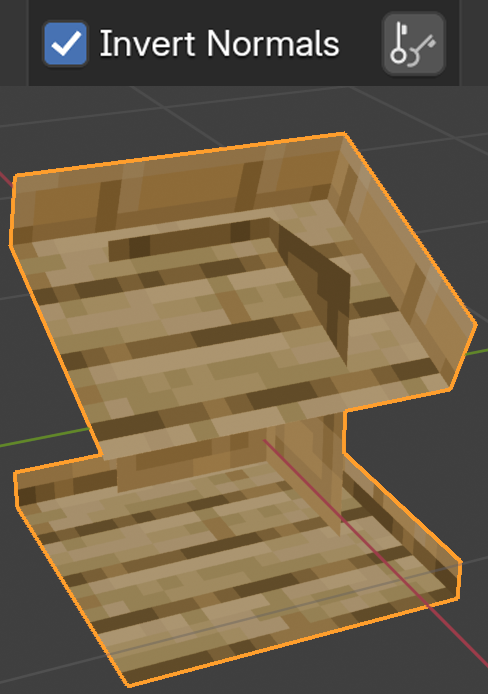
When Invert Normals is enabled, instead of seeing the block from the outside, we see it "inside-out".
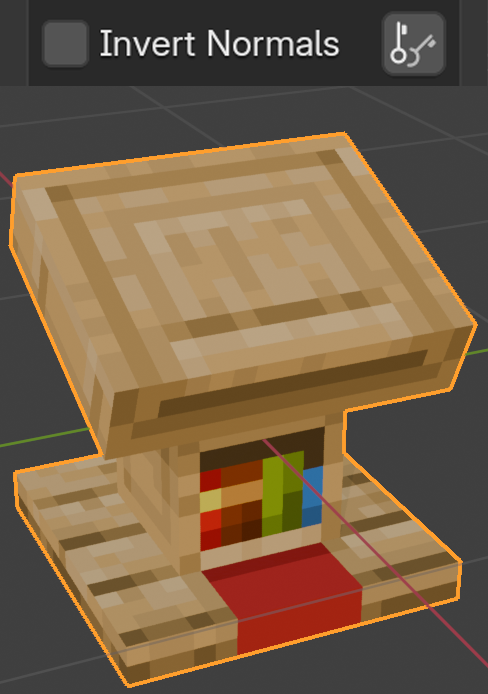
When Invert Normals is disabled, the block will render normally from the outside.
Blockstates
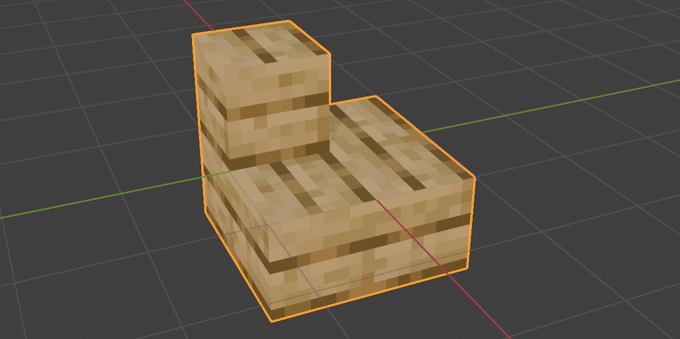
This area only appears for blocks that have blockstates. Here, you can change how the block will look both in Blender (the mesh) and in Minecraft. For example, if you want a specific version of a stair, you can simply choose a blockstate (e.g. shape), change its value (e.g. outer_right), and click Update. This gives you much more control over what you can create.
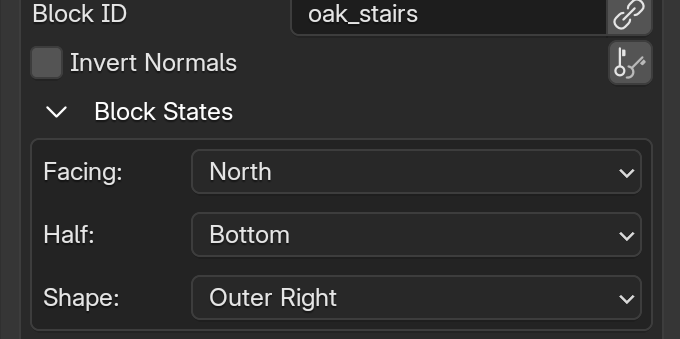
Missing Blockstates?
Some blockstates might not appear for certain blocks. This happens because not all blockstates in Minecraft are visible on Block Displays. The addon only shows hand-picked blockstates that are fully compatible with Block Displays (which is the system we use to animate objects in Minecraft).
Since Minecraft has dozens of different blockstates for various blocks, it would not be feasible to list all of them here. Fortunately, the interface uses pre-defined layouts for each type of blockstate:
- Dropdowns: For properties with specific text options (e.g.
facing=north/south/east/west).
- Checkboxes: For boolean properties (e.g.
powered=true/false).
- Sliders: For numerical values (e.g.
delay=1-4).
Update Block(s)

Whenever you make changes to the Block ID, Invert Normals, or Blockstates, you must click this button to see the results.
Advanced Options
This area contains some less intuitive options. Here you can modify and animate properties inside Blender just like the others, but the changes will only be visible in-game.
-
Block Light

Use this slider to control the "artificial" light level of the block. This adds illumination as if the block were near a light source like a torch. A value closer to 0 means it is further from the light, while a value of 15 makes it look like there is a torch right next to it.
-
Sky Light

Use this slider to control the "natural" light level of the block. This adds illumination as if the block were exposed to the open sky. A value closer to 0 looks like dark cave lighting, while a value of 15 makes it look like a block placed completely outdoors.
Advanced Lighting
Both Block Light and Sky Light values can be combined to achieve the exact shading you need. Additionally, these sliders can be keyframed and animated freely, allowing you to create dynamic lighting effects in your animation.
-
Solidify

When the checkbox is enabled, the addon adds a
/setblockcommand at that specific animation frame. It places the block ID typed in the text field, which can be any valid Minecraft block. If you leave the field empty, the addon automatically uses the object's own Block ID.Animating Solidify
While results can sometimes be a little bit inconsistent, disabling the checkbox during an animation will add a
/setblock aircommand to remove the previously placed block.