Resource Pack
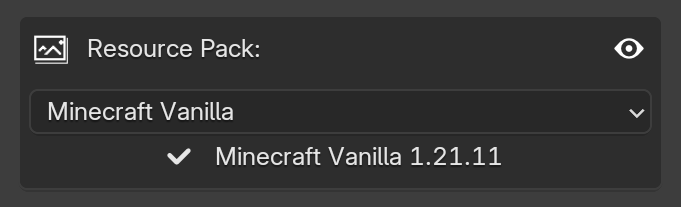
This area allows you to select a resource pack from your Minecraft installation to change the visual appearance of your imported blocks.
By default, MC Animaker uses the standard Minecraft textures and models to generate blocks when adding objects. However, if you want to customize how your blocks look inside Blender, you can select a different pack here.
Resource Pack List
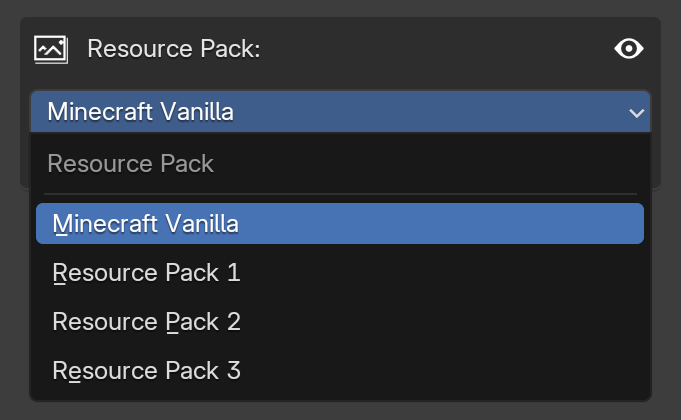
This dropdown menu displays the list of resource packs currently available in your Minecraft instance. As soon as you click an option, the block importer will start using that specific pack's textures and models for any new blocks you add to the scene.
Updating Existing Blocks
When you create a block, its texture is shared with all other blocks in the scene that share the same ID to save resources.
Because of this, changing the Resource Pack will not automatically update the textures of blocks that are already in your scene. To force existing blocks to use the new textures, you need to use the Recreate Materials on Update feature found in the Extras panel.
Missing Textures & Models
Sometimes, an imported block might appear as a standard cube covered in a black and pink texture. This indicates a missing file or model, which usually happens for two main reasons:
- Invalid Files: MC Animaker does not verify the internal integrity of the images or files within your resource packs. It will attempt to load the selected pack even if the files inside are corrupted or completely invalid.
- Block Entities: Currently, Block Entities (such as chests, banners, signs, etc.) are not supported by the importer and will default to the missing texture cube.
Compatibility
If the visual appearance of the blocks inside Blender is not relevant to your current project, it is highly recommended to keep this set to Minecraft Vanilla for maximum compatibility.