General Options
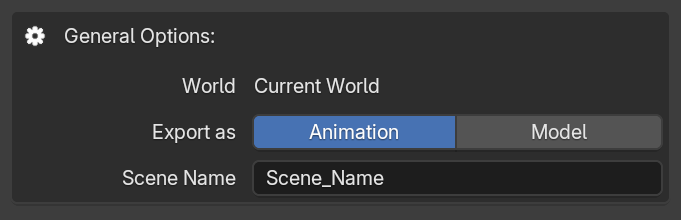
This area controls the exportation logic and identifies your project. While the default settings in the other areas are usually enough for most projects, you must configure this area for each and every project.
Always Visible
Notice that unlike other areas, this one does not have an eye icon () on the top right to hide it. This is intentional, ensuring you always verify your current destination world and project name before hitting export to prevent accidental overwrites.
World

This is a visual indicator that displays the name of the Minecraft world currently connected. This is the exact world where the .mcaproj files will be exported, and from where the addon will import .mcaschem files.
Export as

This option toggles the logic of the exporter, fundamentally changing how MC Animaker processes your scene. Changing this alters the entire file structure and the in-game commands available for the project.
- Animation: Reads the transformations of all valid or selected objects across every keyframe in your scene's frame range, and bakes them into an Animation
.mcaprojfile with all the necessary logic to create and play your scene in-game. - Model: Reads the transformations of all valid objects on a single, specific frame, and bakes them into a Model
.mcaprojfile with no animation logic.
Available Commands:
| Command | Animation | Model |
|---|---|---|
create |
||
rotate |
||
move |
||
remove |
||
play |
||
loop |
||
pause |
||
resume |
||
stop |
Scene Name

This field defines the unique identifier for your project. This exact value is used to name the exported project file (<scene_name>.mcaproj) and the reference entity in the game (<scene_name>_ref).
Overwrite Risk
The exporter will overwrite any previous project that was exported with the same name. Always set a unique Scene Name to avoid losing your work.
Export Scene
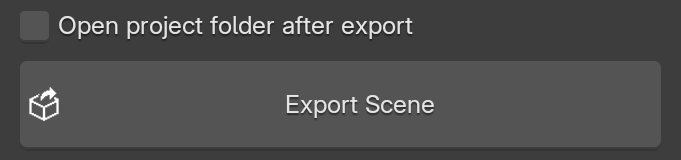
At the very bottom of the Export Tab, you will find the final pieces to generate your project. As soon as you click the Export Scene button, the addon will begin the export process depending on the selected type.
Open project folder after export

If the Open project folder after export checkbox is enabled when you click Export Scene, the addon will automatically open the destination folder on your computer as soon as the export is complete.